 Flowenti
SLAs in Flowenti: managing deadlines
"How soon will you get back to us?" Every organization hears this question, from a customer, a supplier or a colleague in another department. Answering is easy. Keeping the promise, process after process, is harder.
With SLA management (Service Level Agreement, the agreed completion time) Flowenti turns that promise into something visible and measurable: - every process and every activity can have a deadline; - the people doing the work always know where to start; - coordinators see problems before they turn into delays; - at the end of the month the numbers show you where to improve.
Here is how it works, step by step.
The ideas behind it
Before the details, four principles that explain how the feature behaves.
-
SLAs measure, they do not block. When a deadline is missed, the process does not stop and nobody gets stuck. SLAs are there to show, alert and measure, not to prevent work.
-
Only working time counts. Deadlines follow your organization's calendar. Nights, weekends, holidays and lunch breaks do not use up time. This applies to every unit: minutes, hours, days and weeks.
-
Commitments do not change by surprise. When a process starts, Flowenti takes a snapshot of the SLA rules and the calendar in force. If tomorrow you change opening hours or add an extraordinary closure, processes already started keep their deadlines.
-
Processes are measured, not people. SLA statistics show where the process slows down: which activity, which team, which customer. There are no individual rankings.
How a deadline is calculated
The sample calendar is open Monday to Friday, 9:00 AM to 1:00 PM and 2:00 PM to 5:00 PM.
| Activity with an SLA of… | Starts… | Due… | Why |
|---|---|---|---|
| 2 hours | Friday at 4:00 PM | Monday at 10:00 AM | 1 hour on Friday, the weekend does not count, 1 hour on Monday |
| 3 hours | Tuesday at 12:00 PM | Tuesday at 4:00 PM | the 1 to 2 PM break does not count |
| 1 day | Wednesday at 9:00 AM | Thursday at 9:00 AM | one day = the standard working day |
How long is "one day"? It is your organization's average working day. If you work 8 hours Monday to Thursday and 4 on Friday, one SLA day is 7.2 hours and one week is 36 hours. No "8 hours" taken for granted: your calendar decides.
Tip: before switching SLAs on, check that the organization's calendar is complete, with opening hours, holidays and known closures. It is the basis of every calculation.
Step 1 · Switch SLAs on (administrators)
SLAs are off by default. An administrator enables them in the organization's SLA settings, where the general rules are also defined:
| Setting | What it is for | Initial value |
|---|---|---|
| SLAs enabled | Turns the feature on for the organization | No |
| "At risk" threshold | At which percentage of remaining time an activity becomes "at risk", unless the model says otherwise | 20% |
| Reminder | When to send a reminder to whoever has not yet taken on an at-risk activity | 50% |
| Escalation | Allows other roles to be involved after a missed deadline | No |
| Daily summary | Enables the daily digest and sets its time | No · 09:00 |
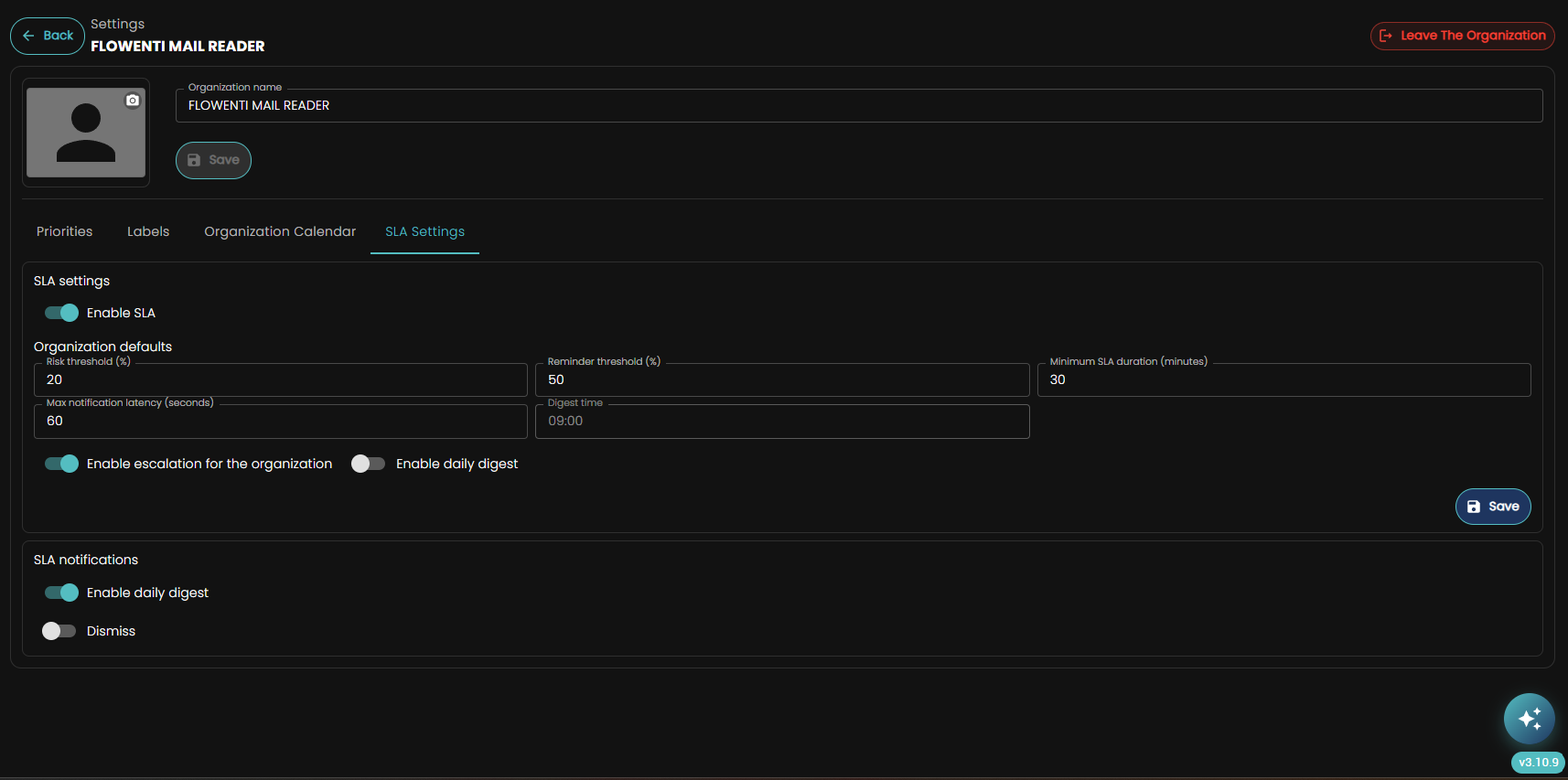
Important: SLAs apply only to processes started after activation. Processes already running stay without SLAs, even when they generate new activities.
Step 2 · Configure SLAs on the model
Open the model in the BPMN modeler. In the properties panel you will find the SLA section: - select an activity to configure the SLA of that activity; - click an empty area of the canvas to configure the SLA of the whole process.
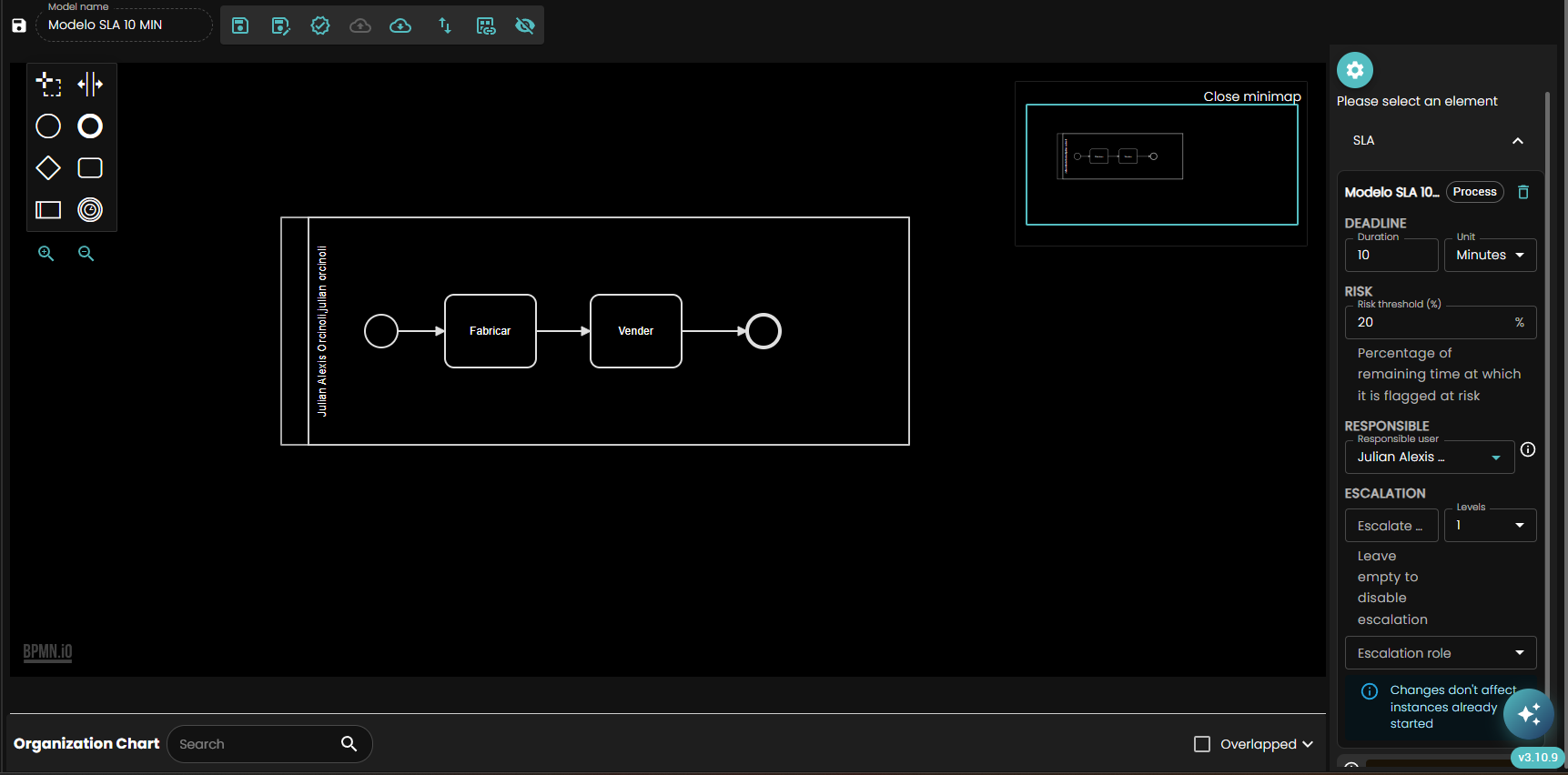
For each SLA you can set:
- Duration: a value and a unit (minutes, hours, days, weeks), always in working time. The minimum duration is 30 minutes.
- "At risk" threshold: if you want a value different from the organization's.
- Person in charge: a user or a role. They are involved when nobody has taken on the activity yet and no other recipient can be found.
- Escalation (optional): how many working hours after the deadline to involve a higher role, and for how many levels (up to 5). Without a delay set, escalation does not start; Flowenti warns you about it.
A small badge with the duration appears on the activities of the diagram, so you get an overview of the model at a glance.
You can also define only activity SLAs, without a process SLA, or vice versa.
The consistency check. When you open or publish the model, Flowenti checks whether the sum of durations along the longest path exceeds the process SLA. It is only a warning: you decide whether that is fine.
SLAs are part of the model version: they are published, copied, imported and exported together with the model.
Step 3 · Start a process
In the Start Process dialog, already in the first step (model selection) you see the SLA duration of each activity on the diagram.
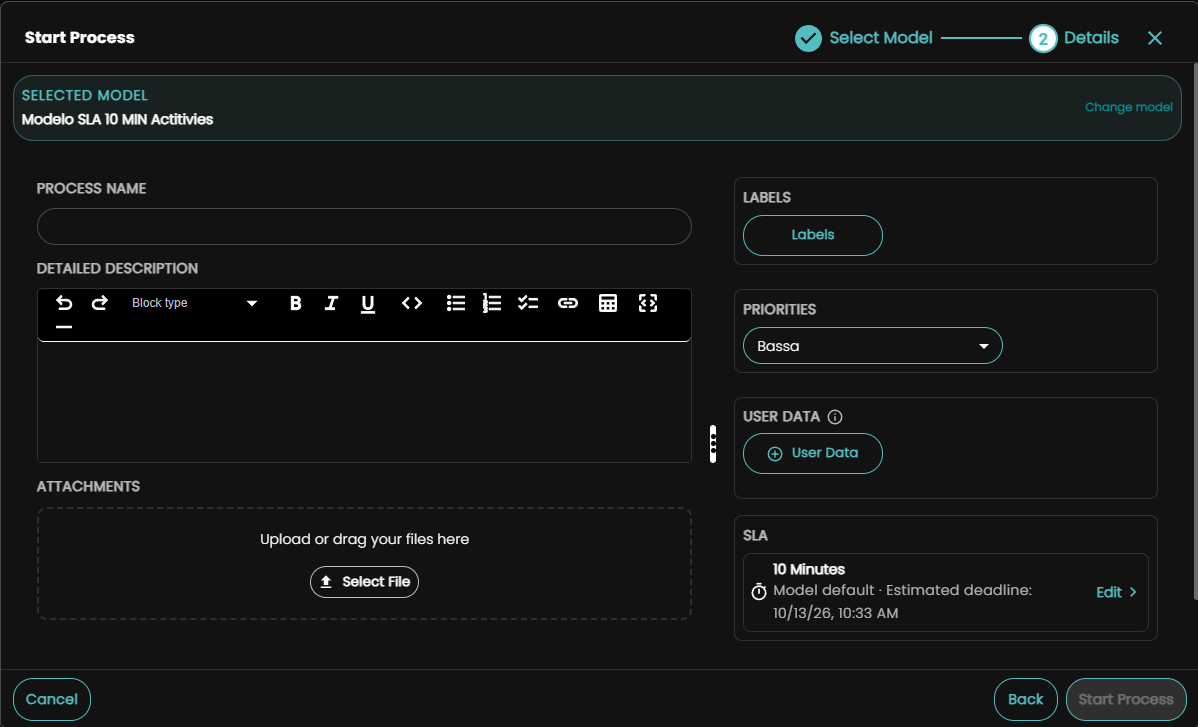
In the second step there is a new SLA deadline card, next to Labels, Priorities and User Data:
- everyone sees the model's default deadline;
- administrators can customize it for this process, with a different duration or a fixed date and time (for the process only, not for single activities);
- a preview shows the exact deadline date and time, already calculated on the calendar;
- a suggestion based on history tells you whether the chosen deadline is more challenging than, in line with, or more relaxed than similar processes completed in the past. With little historical data it says so clearly;
- in the advanced options you can customize the SLAs of single activities in advance.
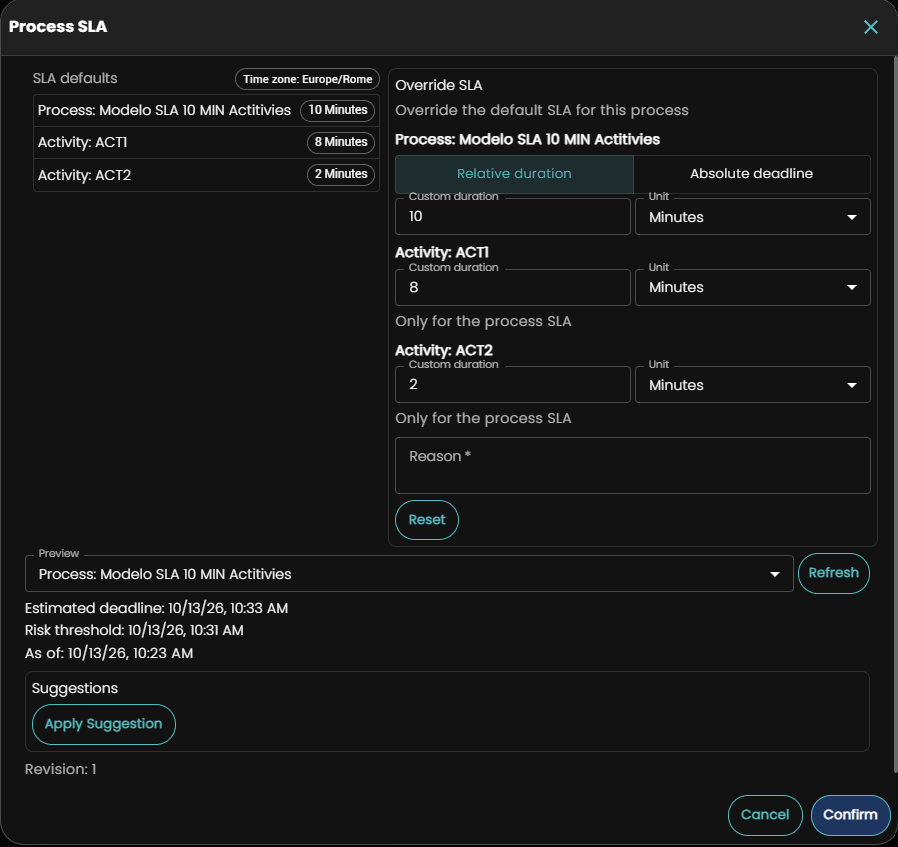
If the deadline is not valid, for example a date already in the past, the start button stays disabled and a message explains why.
Step 4 · Work with My Activities
For the people doing the work, SLAs are above all a help to decide where to start.
- Each card shows the status with color, icon and text (on time, at risk, overdue) and the time left, or the delay.
- Within each column, activities are sorted by urgency: overdue first, then at risk, then on time.
- At the first access of the day a short message points out the activities that need attention and takes you to the first one. If you do not need it, you can turn it off for good.
- In the activity detail a band at the top always shows the deadline while you work.
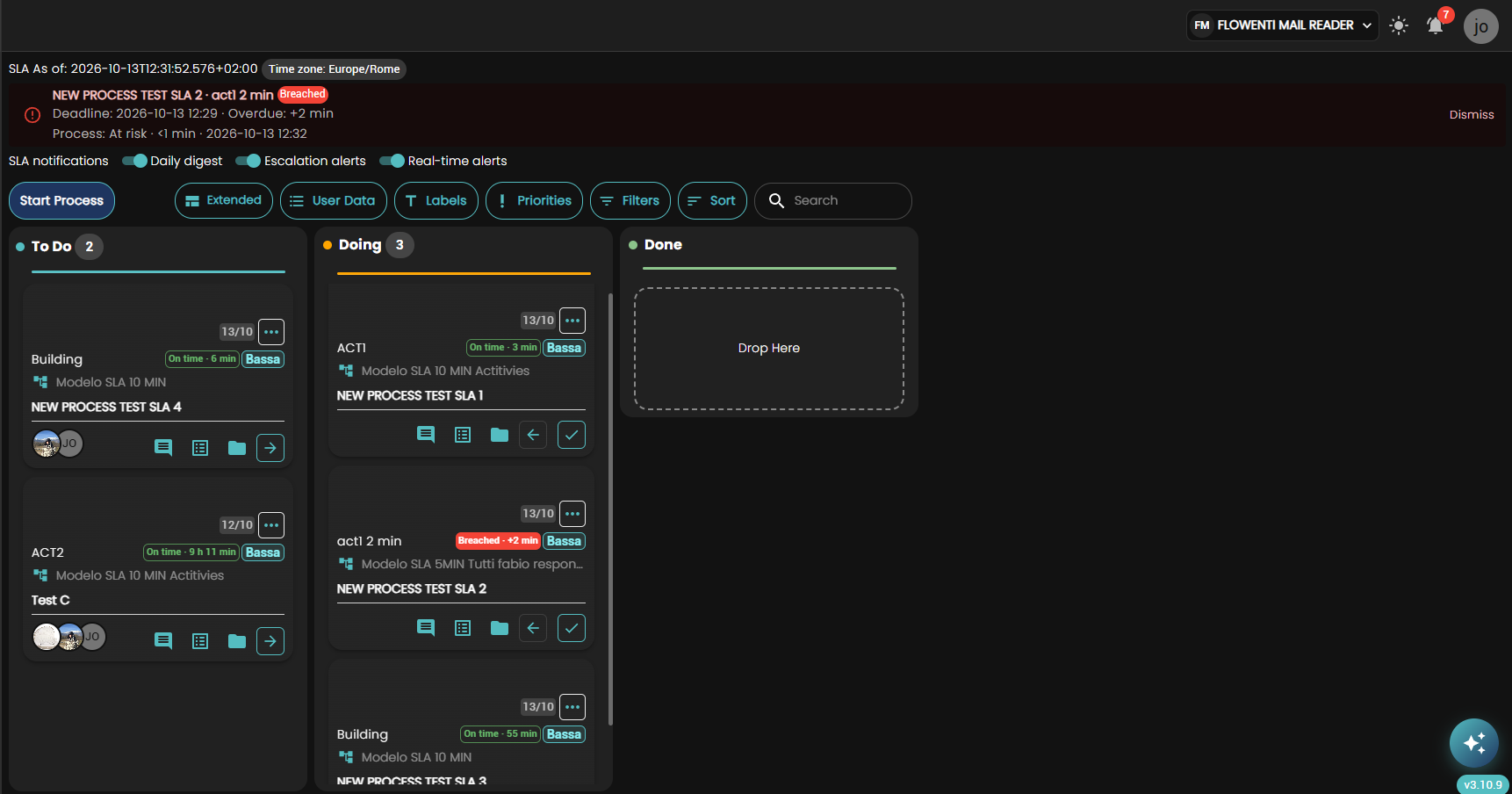
When does the clock start? As soon as the activity is available, that is when it appears in "To Do", not when you take it on. If you move it back to "To Do", the time is not reset.
Why is the countdown sometimes paused? Because outside working hours SLA time does not run. It resumes at the next opening.
Step 5 · Monitor with the Monitor
Coordinators have two complementary views.
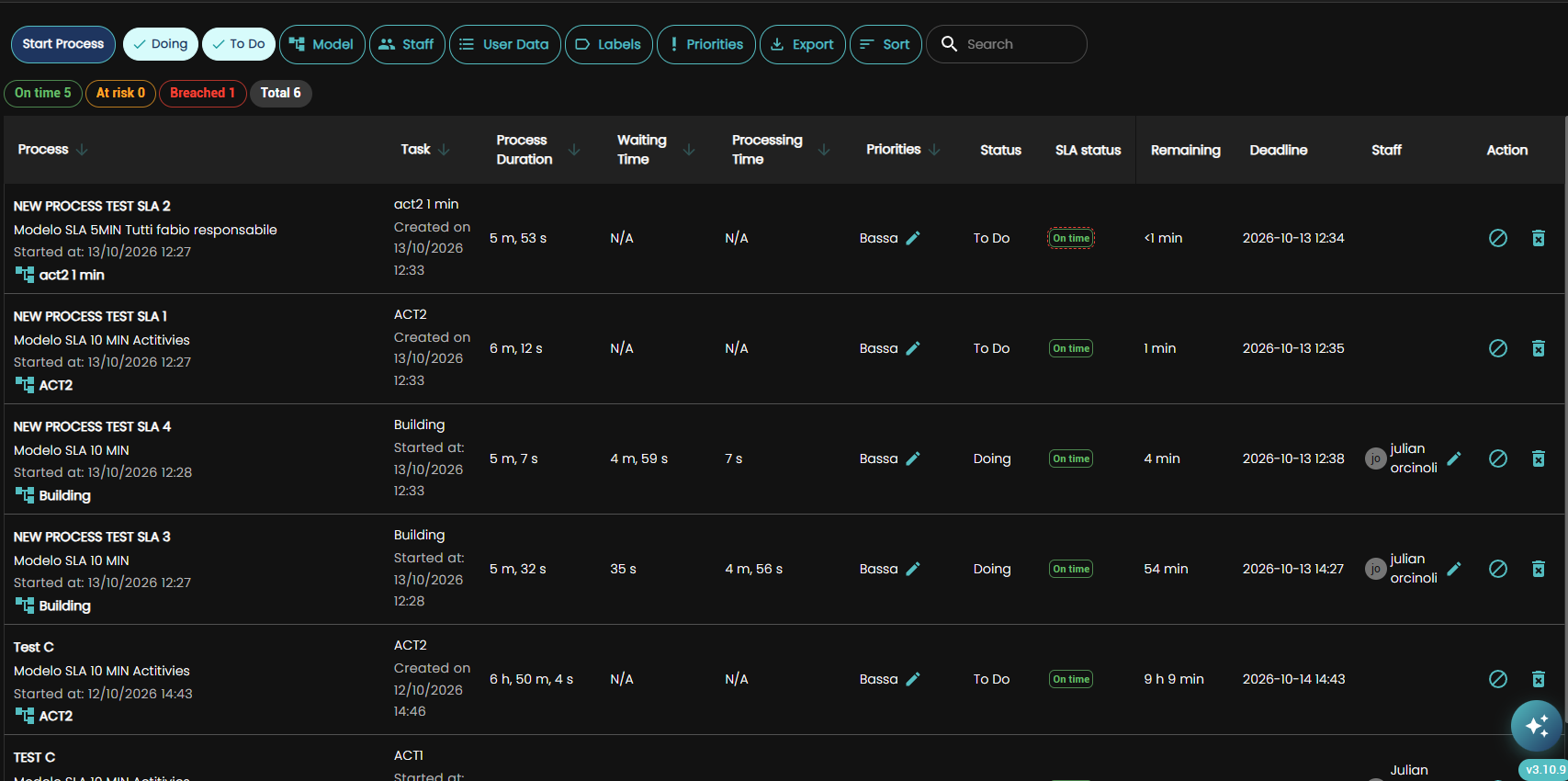
The list
- At the top, the Overdue · At risk · On time counters: click one to filter the list.
- The Processes | Activities switch, because the process SLA and those of single activities are independent.
- The Needs attention only filter, which shows only what is overdue or at risk.
- The SLA column with the remaining time and sorting by urgency.
- The "level n/m" indicator when an escalation has started.
- Processes without SLAs are shown in a neutral way: they never appear "on time" by mistake.
The diagram
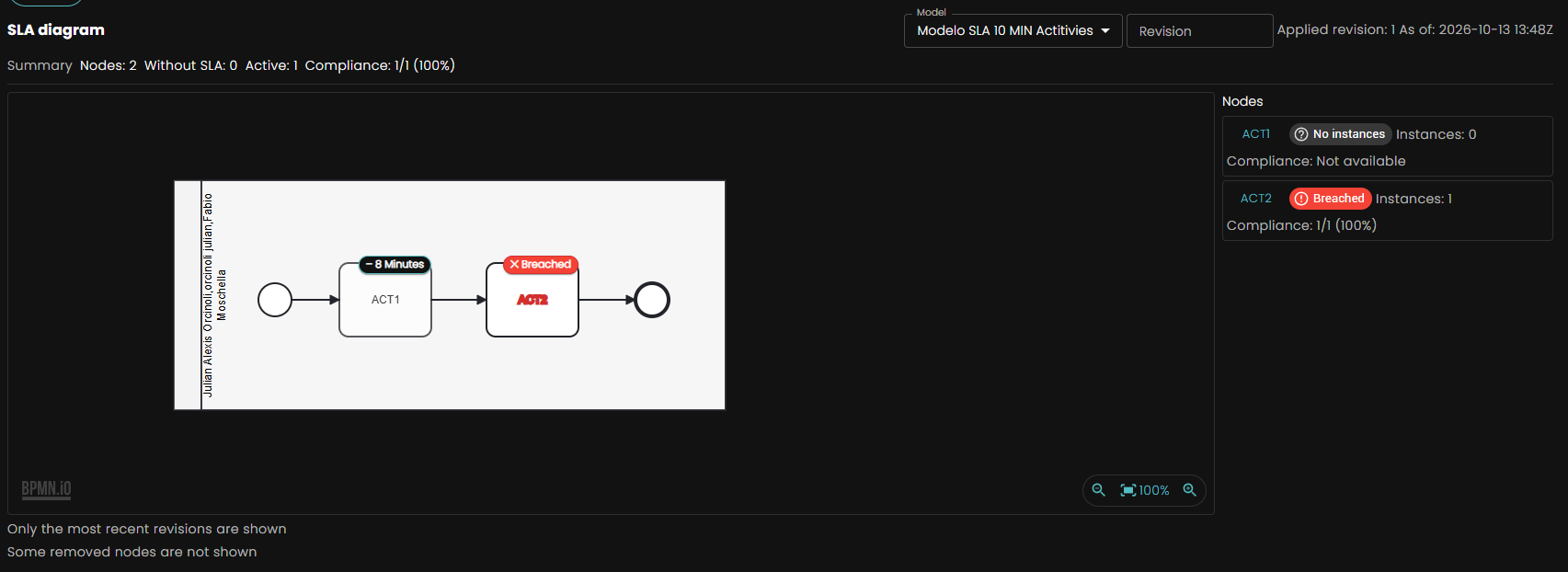
Each activity of the model takes the color of the worst situation among the instances running at that point, with a badge showing how many there are. One click opens a summary (for example 7 on time, 3 at risk, 2 overdue) and takes you to the list already filtered.
It is the quickest way to see where delays pile up.
Step 6 · Notifications and daily summary
Flowenti alerts the right people at the right time.
| When | Who receives the alert |
|---|---|
| The activity becomes at risk | If nobody has taken it on: the members of the group of the activity's area (failing that, the person in charge). If it is already assigned: whoever is working on it |
| Intermediate reminder | As above, if nobody has acted in the meantime |
| The activity is overdue | Whoever is working on it plus the area's recipients |
| Escalation | The role set in the configuration, level by level |
Each notification arrives in the recipient's language and contains a link straight to the activity. Alerts go out within one minute of the event.
The daily summary (digest) gathers all activities to handle in a single message and arrives once a day at the time chosen by the organization. It is ideal for people who prefer not to be interrupted by single notifications.
Each user can decide in their own preferences whether to receive the summary and the notifications.
Step 7 · Extensions: change your mind without losing track
It happens: the customer sends documents late, a supplier slips. An administrator can extend the deadline from the activity or process detail: - with a new duration, or with a fixed date (process only); - stating the reason, which is mandatory.
The original deadline is never deleted. The detail keeps showing the original deadline, the updated one and the history of extensions with author and reason.
Step 8 · Measure with Statistics
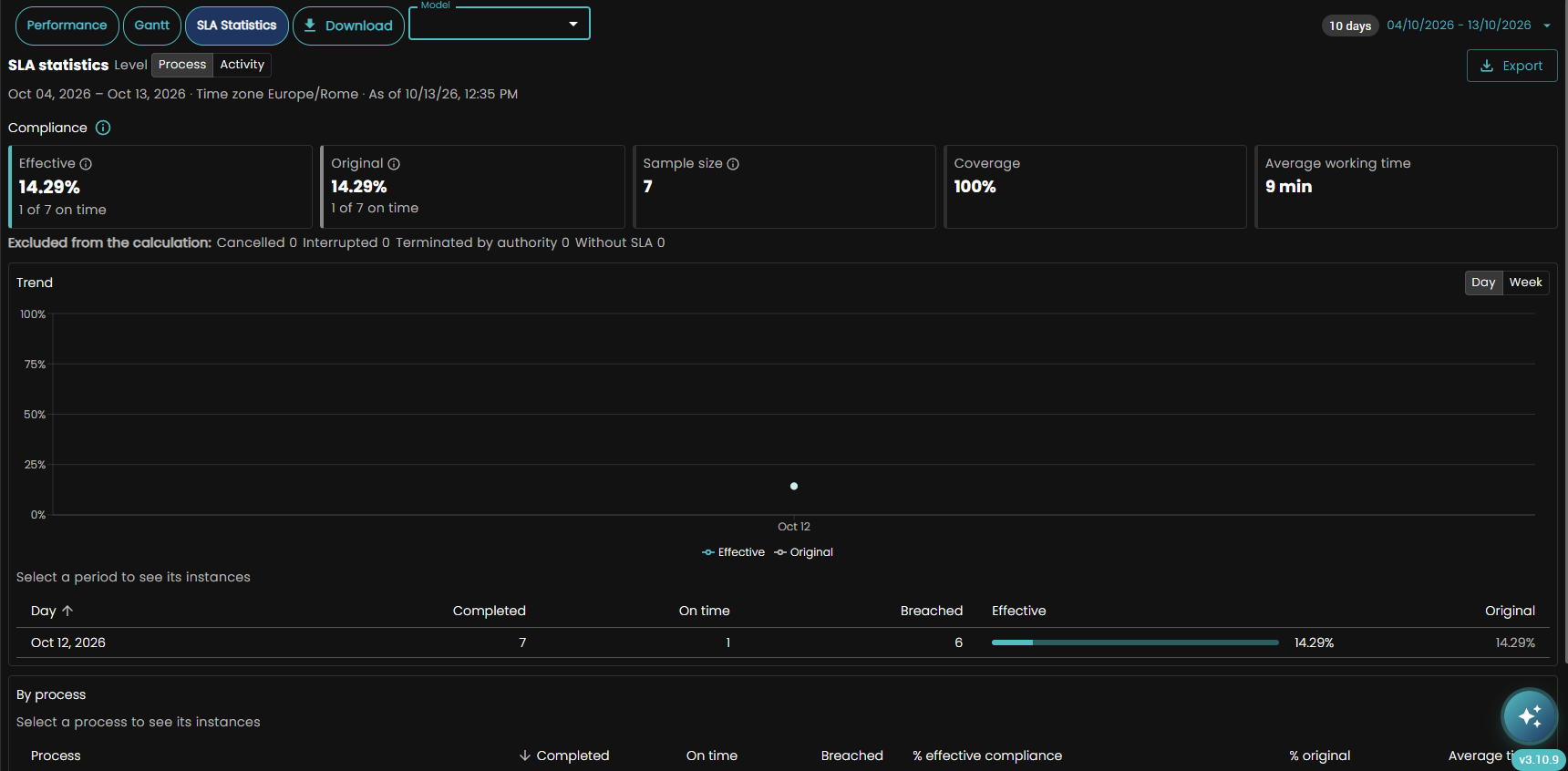
On the Statistics page you will find the SLA tab, next to Performance and Gantt. It uses the same model and period filters.
Two ways of counting, both useful
| What it measures | The question it answers | |
|---|---|---|
| Original basis | Closures within the deadline promised at start | "How reliable are we on our initial commitments?" |
| Updated basis | Closures within the deadline in force, extensions included | "How well do we meet the deadlines we actually manage?" |
If the two percentages are far apart, that is a signal: initial deadlines may be too optimistic, or extensions are used too often.
What you find in the tab
- Compliance percentages with the number of cases they are based on, separate for processes and activities. Cancelled and interrupted items are excluded from the calculation and shown separately. With no data you read "N/A", not a misleading 0%.
- Trend over time.
- Breakdown in two clicks: from the process down to the single activity that slows things down.
- Customer filter, if you have set in the model which field identifies the customer.
- Up to 3 AI-generated suggestions a day on aggregated data, showing how many cases support them.
- Export to PDF or Excel, or send by email, with the same filters you are looking at.
Tips for using SLAs
Start from data, not hopes. Before setting a duration, check in Statistics how long that process and those activities take today, and use the suggestion at start as a check. An unrealistic SLA only produces ignored alarms.
Start with a few processes. Enable SLAs on one or two important processes, observe for a few weeks, then extend. Thresholds and durations are easier to tune on a small scope.
Choose a useful "at risk" threshold. The default 20% works for most cases. For long activities, lasting days or weeks, a higher threshold leaves more time to react. For short activities, a threshold that is too high puts everything "at risk" right away.
Use roles, not people. Name a role rather than a single user as person in charge or escalation recipient: the configuration stays valid when people change or go on holiday.
Escalate sparingly. One or two levels are almost always enough. Too many levels and short delays turn every small deviation into an alarm for management.
Keep the calendar up to date. Enter local holidays, closures and extraordinary openings in advance. Changes apply to processes started afterwards.
Give extensions clear reasons. A precise reason ("waiting for documents from the customer", "supplier running late") turns extensions into valuable information, not just a correction.
Read both bases. The original basis measures how reliable your promises are, the updated basis your ability to manage real deadlines. Together they tell the whole story.
Suggest the daily summary. For people handling many activities, the morning digest is often more useful than many notifications during the day.
Frequently asked questions
Does an overdue SLA block the process? No. The process carries on normally; the SLA alerts and measures.
Can I set a fixed date on a single activity? No. A fixed date is available only for the process. Activities always use a duration, because their start time is not known in advance.
If I change the calendar, do running deadlines move? No. Each process uses the calendar in force when it started. Only an administrator can explicitly request a deadline to be recalculated on the current calendar, and the operation is recorded.
Do activities repeated in a loop each get their own SLA? Yes. Every time the activity comes up again, a new SLA starts, independent of the previous ones.
What happens if a process is cancelled? It counts neither as met nor as missed: it is excluded from the percentages and shown separately.
Do the statistics show who is slowest? No. By design, SLA statistics are about processes, activities, teams and customers, never individual people.
Does it work on a smartphone too? Yes. All SLA features are available on desktop, tablet and smartphone, in six languages: Italian, English, Spanish, French, German and Portuguese.
Get started today
SLAs are available right away for all Flowenti organizations. 1. Ask an administrator to switch them on in the SLA settings. 2. Configure the durations on your most important process. 3. Start new processes and watch the Monitor.
Questions or suggestions? Write to us at [SUPPORT_CONTACT]: the feature will keep growing thanks to your feedback.